Where do you get accounts and proxies?
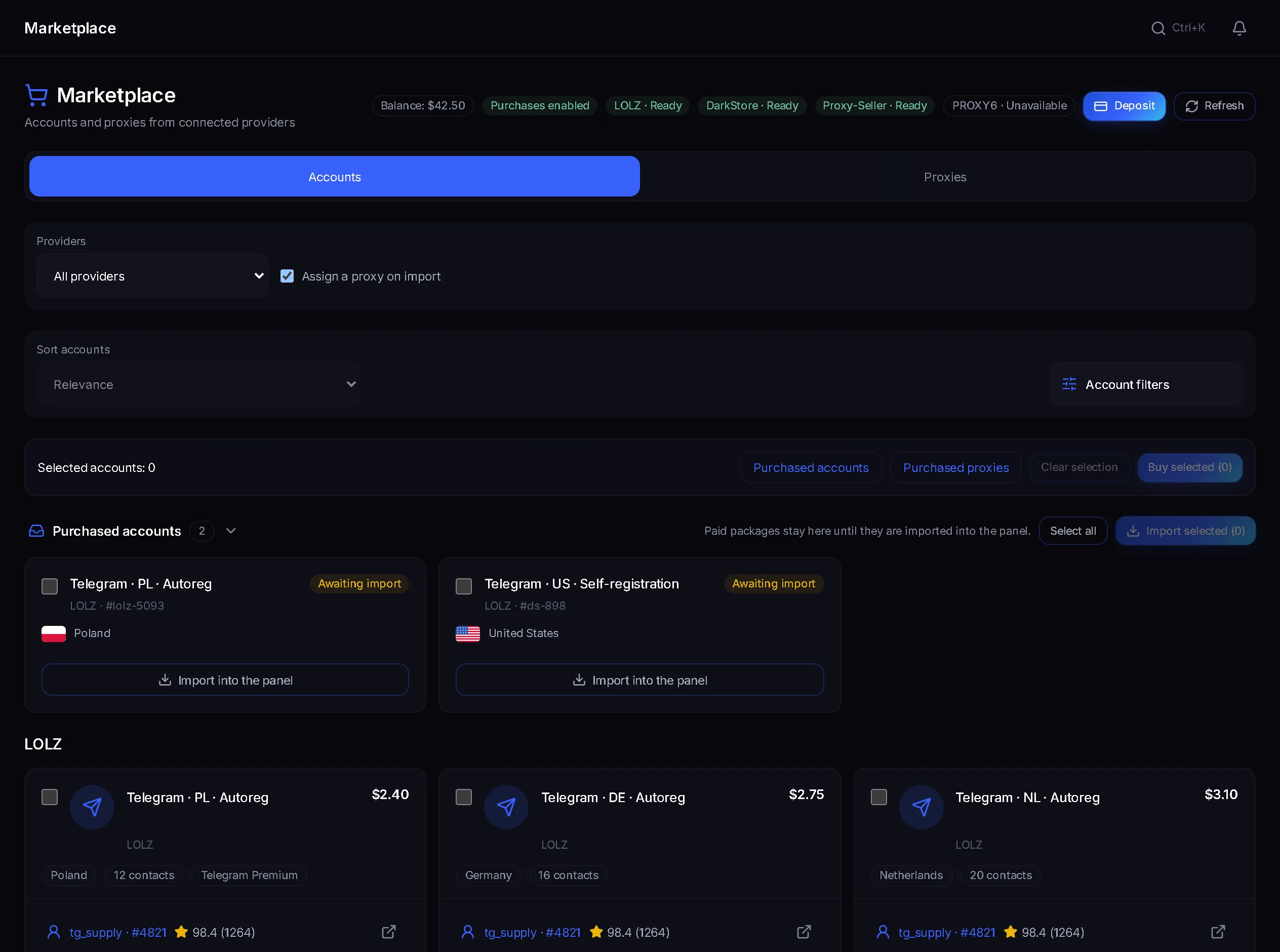
Buy Telegram accounts and proxies from connected providers inside the panel: catalog, seller profile, payment and import.
- The buyer owns the choice of seller
- Catalog, filters and seller profile in one place
- A bought package imports into the panel with a proxy
Running anything takes accounts, and buying them usually happens somewhere else: another marketplace, a separate wallet, an archive on your disk and a manual import. The marketplace pulls that into the panel: a catalog of connected providers, one balance, purchase and import into the account manager. What it does not do is pick a seller for you or answer for what you bought.
How a purchase goes
- Top up the balance and check that the provider is marked “Ready”.
- Narrow the list with filters and open the seller profile before buying.
- Confirm the price, then import the bought package with a proxy.
The panel is not responsible for accounts you buy
This is the first thing to understand before your first purchase. TeleGain shows the catalog of connected providers and handles payment, but it does not vet the quality of a listing and takes no responsibility for accounts bought through the marketplace. The panel does not recommend sellers, does not rank them by trustworthiness, and does not promise that a bought account will last a single day. The decision is yours, and so is the risk.
How to read a seller
On a listing card, next to the seller's name, there is a number and a number in brackets. The first is the share of positive reviews as a percentage; the second is how many reviews that share is built from. The panel counts both from the Telegram section rather than the seller's whole profile, so the figure is about account trading specifically. That gives you a rule worth keeping in mind: 100% on its own means nothing, what matters is a high share together with a large number of reviews. A seller at 100% over three reviews and a seller at 98% over a thousand are two different levels of risk, and the second is far calmer.
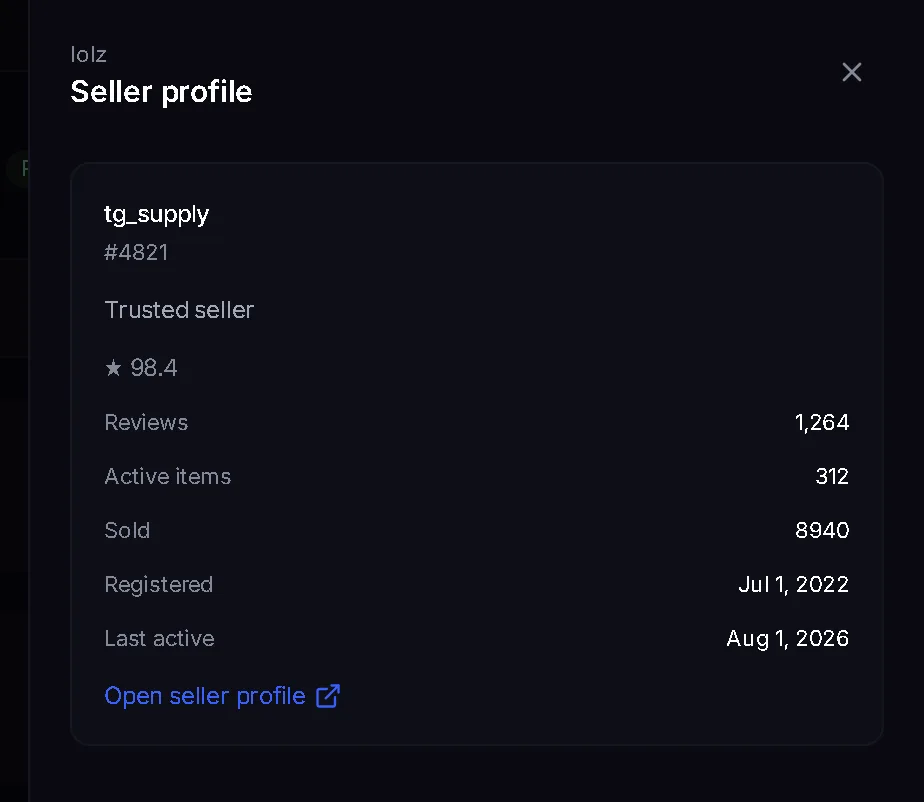
- The button with the seller's name opens “Seller profile”: “Reviews”, “Active items”, “Sold”, “Registered”.
- “Sold” and “Active items” show scale. A one-off seller with a couple of listings and a shop with thousands of sales are different levels of risk at the same percentage.
- If the marketplace does not return the profile, the panel says so plainly with “Seller unavailable from API” and keeps the link to the item itself.
- DarkStore has no seller: it sells shop packages, so instead of a profile you get “Product details” with the product rating, purchase count, stock and minimum order.
Recent reviews beat the lifetime score
The panel shows an accumulated total, not a trend, and that is its weak spot. A seller who has been collecting complaints for the last two weeks still looks respectable by lifetime share: new negative reviews drown in the mass of old positive ones, and the longer their history, the slower the percentage reacts. So before any purchase that matters, open “Open seller profile” and read the reviews by date. A recent run of complaints outweighs a pretty overall percentage: from a seller like that, take one listing as a test or none at all.
What the catalog shows
The catalog is not one list but several independent ones: each provider loads on its own request, and one failing does not take the other down. The whole screen follows from that.
- The “Accounts” and “Proxies” tabs switch the whole screen, filter set included.
- On the “Accounts” tab, results are split per provider: LOLZ and DarkStore are separate sections, each with its own pagination at 40 listings per page.
- A card shows the listing title, the provider, the price, the origin (“Autoreg”, “Self-registration”, “Phishing”, “Stealer”), the country, the contact count, plus the “Spam block” and “Telegram Premium” marks when they apply.
- Listings you already bought are dropped from the results, and a line reading “Already purchased and hidden” appears under the section.
- If the data could not be refreshed, “Showing previous catalog data. Refresh before buying.” appears above the list and “Buy” stays disabled until you refresh.
- If a provider does not answer, its section shows “Catalog is temporarily unavailable” with a “Retry provider catalog” button. The other provider keeps working.
Account filters
The set of conditions comes from the provider, not from the panel, so it changes with what you pick under Providers. Filters have one job: narrow the results to lots that survive the first day, not to the cheapest ones.
- “Sort accounts”: “Relevance”, “Price: low to high”, “Price: high to low”, “Newest first”.
- The “Account filters” button opens the condition panel and shows a counter for how many are already on.
- “Minimum price, $” and “Maximum price, $” are in dollars and take decimals: 2.50 drops everything under two and a half dollars.
- “Minimum account age (days)” cuts out freshly created accounts. It is the single most useful filter when you want a listing that survives its first day rather than the cheapest one on the page.
- “Account password”, “Linked email”, “Spam block” and “Telegram Premium” each switch between three positions: “Any”, “No”, “Yes”.
- “Allow GEO spam block” is only available with “Spam block: No”, and it widens the results: with it on, accounts carrying a regional spam block stay in the list, a block that limits work in particular countries rather than everywhere.
- “Include country” and “Exclude country” build lists: included ones are marked with a plus, excluded ones with a minus, and the same country cannot land in both.
- A filter a provider does not support is greyed out and cannot be pressed. The set of available conditions comes from the provider itself, so picking one provider can change what is offered.
Price and purchase confirmation
“Buy” does not buy straight away. The panel first asks the provider for the current price, which is when you see “Checking price…”, and only then opens the “Confirm purchase?” dialog with the final price, the time the quote stays valid, and a reminder that funds are not debited until you confirm. If the quote went stale or the price changed, the purchase does not go through and the panel asks for a fresh quote. You are only charged for a lot that is actually bought: a failed purchase leaves the balance alone. The header always shows “Balance”, the spending state (“Purchases enabled” or “Browse only”) and a “Ready” or “Unavailable” badge per provider. “Browse only” means the catalog and quotes work while debiting is switched off by the operator.
Buying in bulk
Every account card has a checkbox, and a pinned selection bar sits above the list with “Selected accounts”, “Clear selection” and “Buy selected”. The selection lives above the provider sections and above pagination, so it survives paging through results or switching between LOLZ and DarkStore. Purchases run one listing after another with a progress line counting how many of the queued listings are done, and at the end the panel reports how many were bought and how many failed. A practical note: queueing dozens of listings from an unfamiliar seller in one go is a bad idea, because every mistake surfaces after the money has already moved. The sane order is one listing, import, check, and only then a batch.
What arrives after a purchase
The account does not appear in the panel by itself. The bought package, a Telegram session file or a tdata folder, is stored on the server, and the purchase moves into the “Purchased accounts” section on the “Accounts” tab marked “Awaiting import”. The split is deliberate: payment should not fail just because the panel happens to have no free proxy right now.
- “Import into the panel” opens a three-step wizard: “Preview”, “Profile”, “Result”.
- On the “Profile” step you choose the proxy: “Proxy from the panel”, “Use my own proxy” as a socks5://user:pass@host:port line, or “Buy a proxy” right inside that window.
- In “Proxy from the panel” mode you can tick nothing and let any free proxy be used, or tick specific proxies and bind exactly those.
- Without a proxy the import will not start: the panel replies that there is no free valid proxy in the pool, and the purchase stays saved rather than being lost.
- After the import the account appears in the account manager and goes through the usual session check there, like any other imported account.
When a package is paid for but never downloaded
Such a purchase shows up as its own card marked “Recovery required” with a “Recover package” button. The panel fetches the files from the provider again without buying anything and without charging again. Buying the same listing a second time here is unnecessary and harmful: you would simply pay twice.
The “Proxies” tab
The second tab is built as a configurator rather than a catalog. You set “Proxy family”, “Country”, “Period” and “Quantity”, and the panel shows one offer per provider with the price for the whole order and the price per proxy. The cheapest one is tagged “Best price”. A provider that has no such combination is shown explicitly with a “No offer” note instead of quietly vanishing from the list. While the filters are empty, IPv4 USA for 30 days is displayed. Bought proxies land in the panel immediately, so the “Purchased proxies” block is not an import step: it only exports them as a list in the protocol you need for external tools.
Why a purchase can fail
- The marketplace checks the account itself before selling and refuses to sell a dead session. The panel reports that the session is invalid because of a logout or a block and suggests another listing. Nothing is charged, and it is the cheapest listings that fail this check most often.
- Insufficient balance: top it up and repeat the purchase.
- The price changed or the quote expired: the panel asks for a current quote again.
- The item was already bought or is no longer available: the live provider feed keeps showing sold items for a while.
- The provider rate-limited requests: retry in a minute.
- Purchases are switched off by the operator: catalog and quotes work, debiting does not.
- The order was paid but fulfillment needs recovery: do not buy that listing again.
Common mistakes
- Choosing a listing on price alone. The cheapest one is usually cheap for a reason, and the reason shows up either at the pre-sale check or on the first run.
- Trusting a percentage without the review count: 100% over three deals is not a reputation.
- Looking only at the overall percentage. A lifetime share moves slowly, and the last two weeks are barely visible in it.
- Buying in bulk from an unfamiliar seller before a single test purchase.
- Expecting the account to appear in the panel by itself: until the package is imported it is just a file on the server.
- Trying to import with no free proxy available: the import will not start and the listing stays waiting.
Ready to open the panel?
Review the scenario constraints before launch.
Read next
 Basics
Importing accounts: sessions, tdata and proxy binding
How to prepare your own sessions and proxies for import, review their state and avoid launching work before they are ready.
 Guide
GuideTelegram proxies: route selection and verification
How to bind your own proxy to a session, verify the route and stop on an error.
 Guide
GuideHow to collect an audience from a similar channel and prepare an invite flow
A practical workflow for a target base: purpose, parser, filters, proxies, sessions and honest result review.